Add your business details
Set the name, contact details, address and tax numbers that print on your quotes and invoices.
Updated 3 November 2026
Your business details appear at the top of every quote and invoice you send, so customers know who it’s from and how to reach you.
On the web
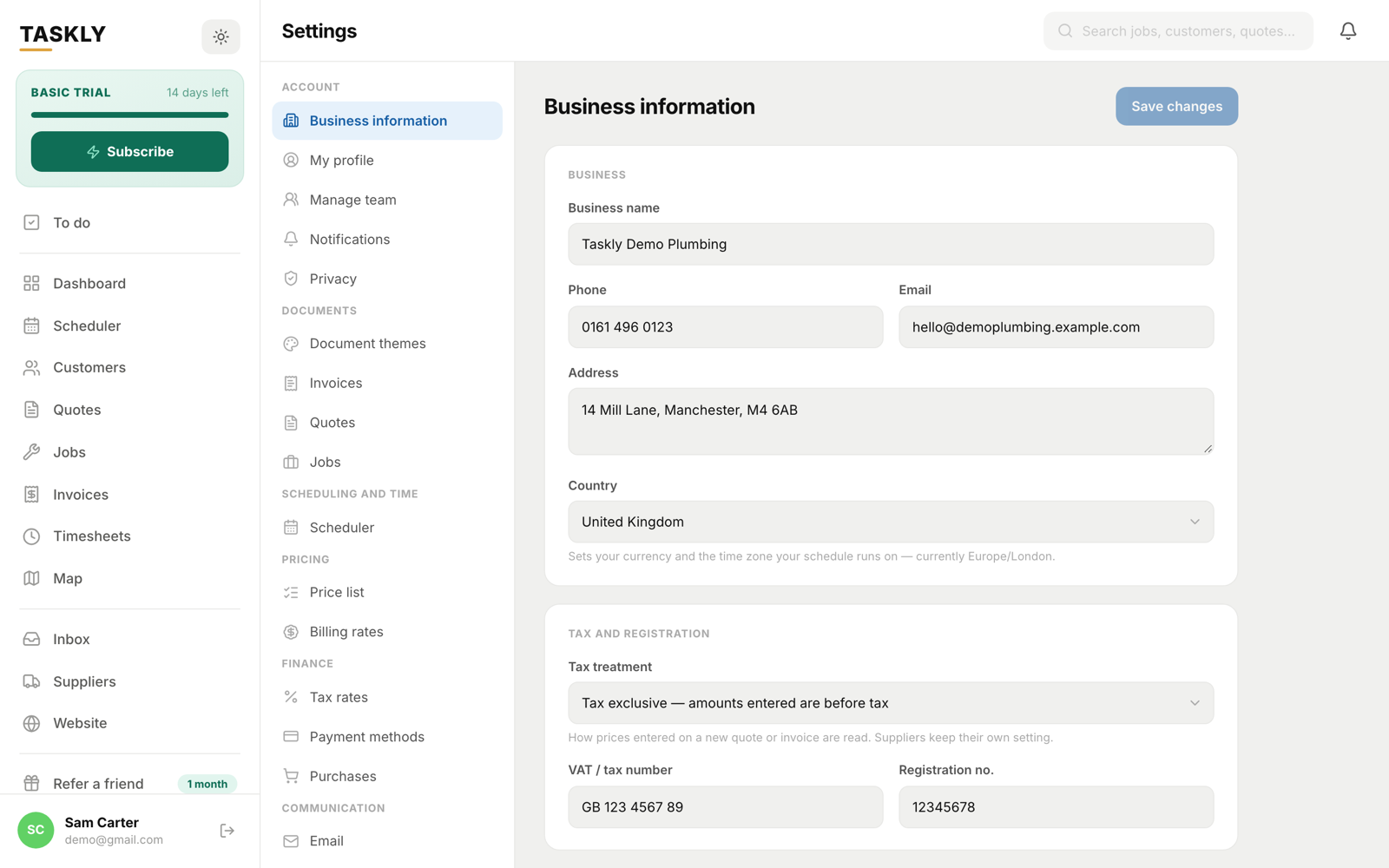
- Choose Settings in the sidebar. Business information opens first.
- Fill in what applies to you, then choose Save changes.
On the phone app
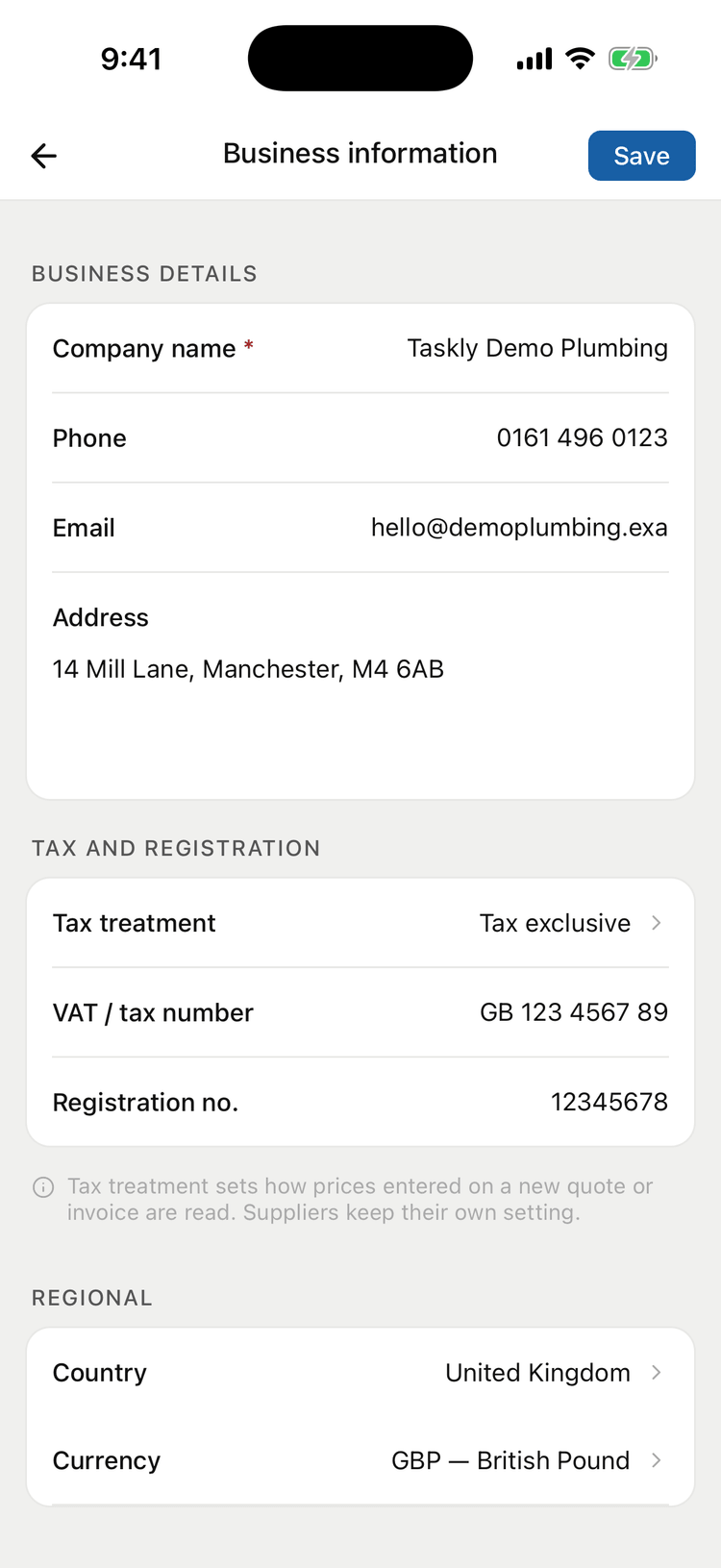
- Tap More, then Settings, then Business information.
- Fill in what applies to you, then save.
 (opens full size)
 (opens full size)
What each field does
- Business name (Company name on the phone app), Phone, Email and Address print on your documents. Replies to the quotes and invoices you email go to this email address.
- Country sets your currency and the time zone your schedule runs on. On the phone app you can change the Currency separately.
- In the United States, State lists a suggested base rate for each state. It doesn’t change your tax rates, so set yours in Manage tax rates.
- Do you charge tax? decides whether new quotes and invoices add tax. Turn it off and they carry none.
- When you charge tax, your tax number and Registration no. appear. They’re only needed if you’re registered, so leave them blank if not.
- Manage tax rates opens your tax rates, where you can add or change them.
Related articles
- Add your logo and brand colour
Put your logo on your quotes and invoices, pick a colour and choose a template.