Add your logo and brand colour
Put your logo on your quotes and invoices, pick a colour and choose a template.
Updated 3 November 2026
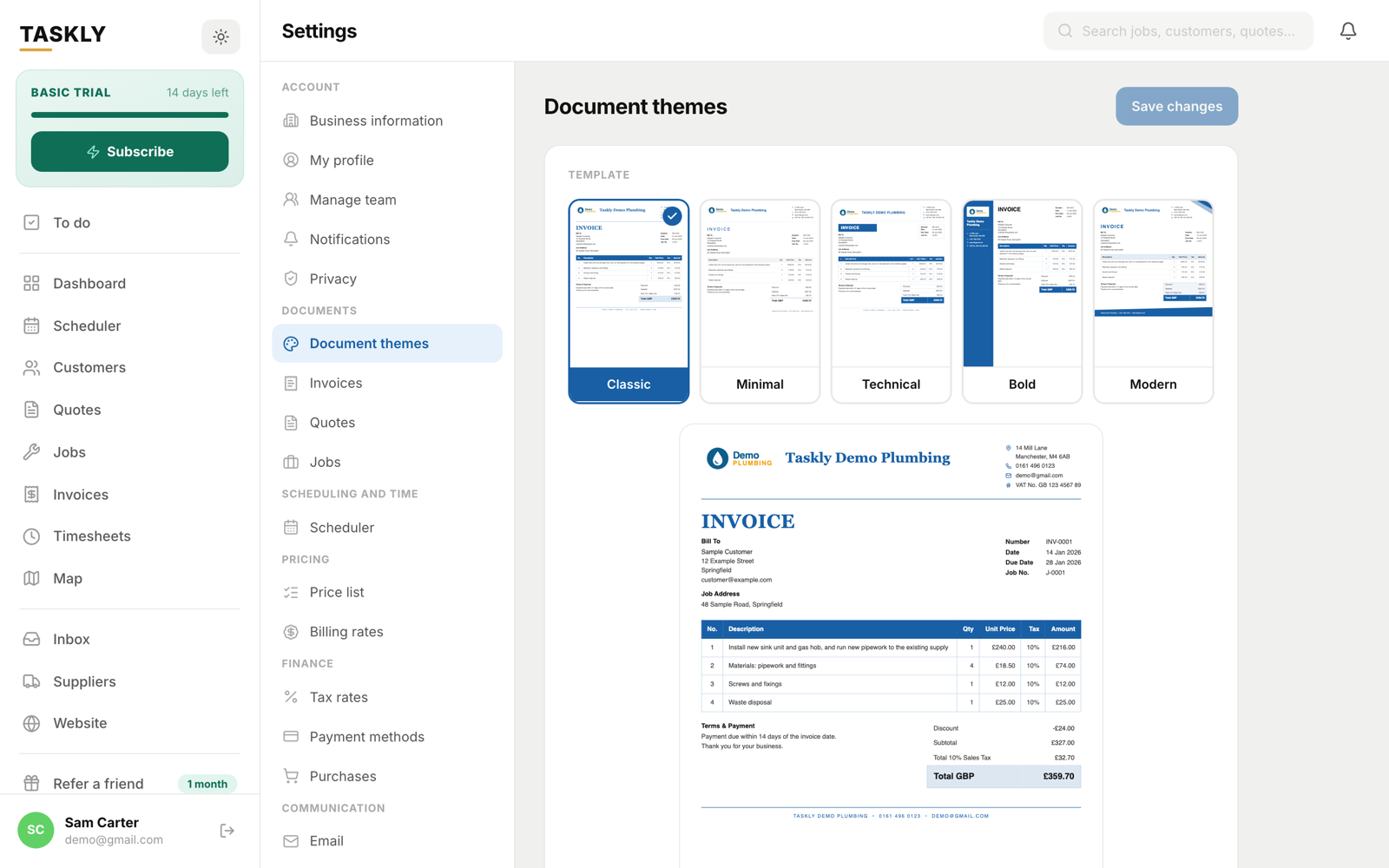
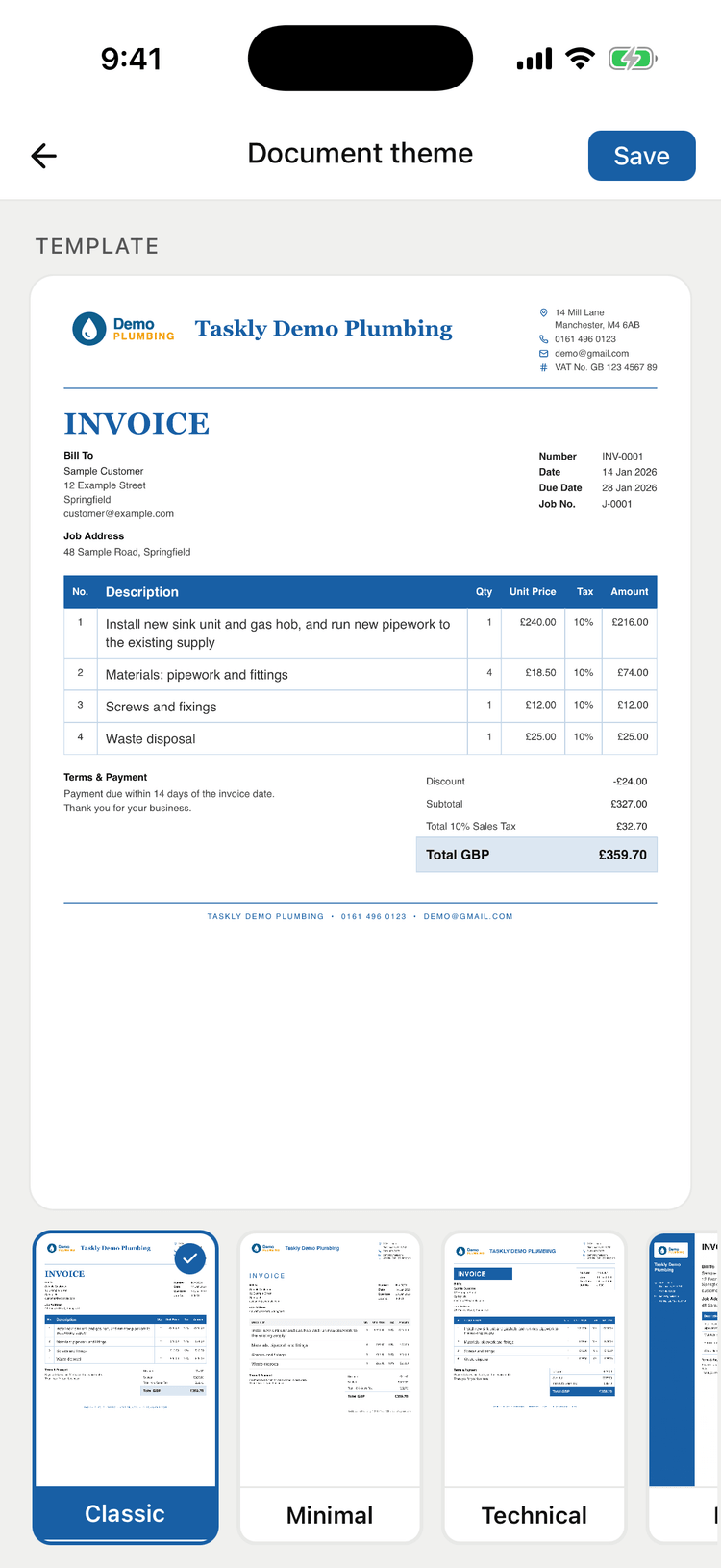
Your logo sits beside your business name on every quote and invoice. A colour and a template set the rest of the look, and a sample document shows the result as you go.
On the web
- Go to Settings → Document themes.
- Choose Upload logo and pick the file. It’s saved as soon as it uploads.
- Pick an accent colour, and a template: Classic, Minimal, Technical, Bold or Modern.
- Choose Save changes.
On the phone app
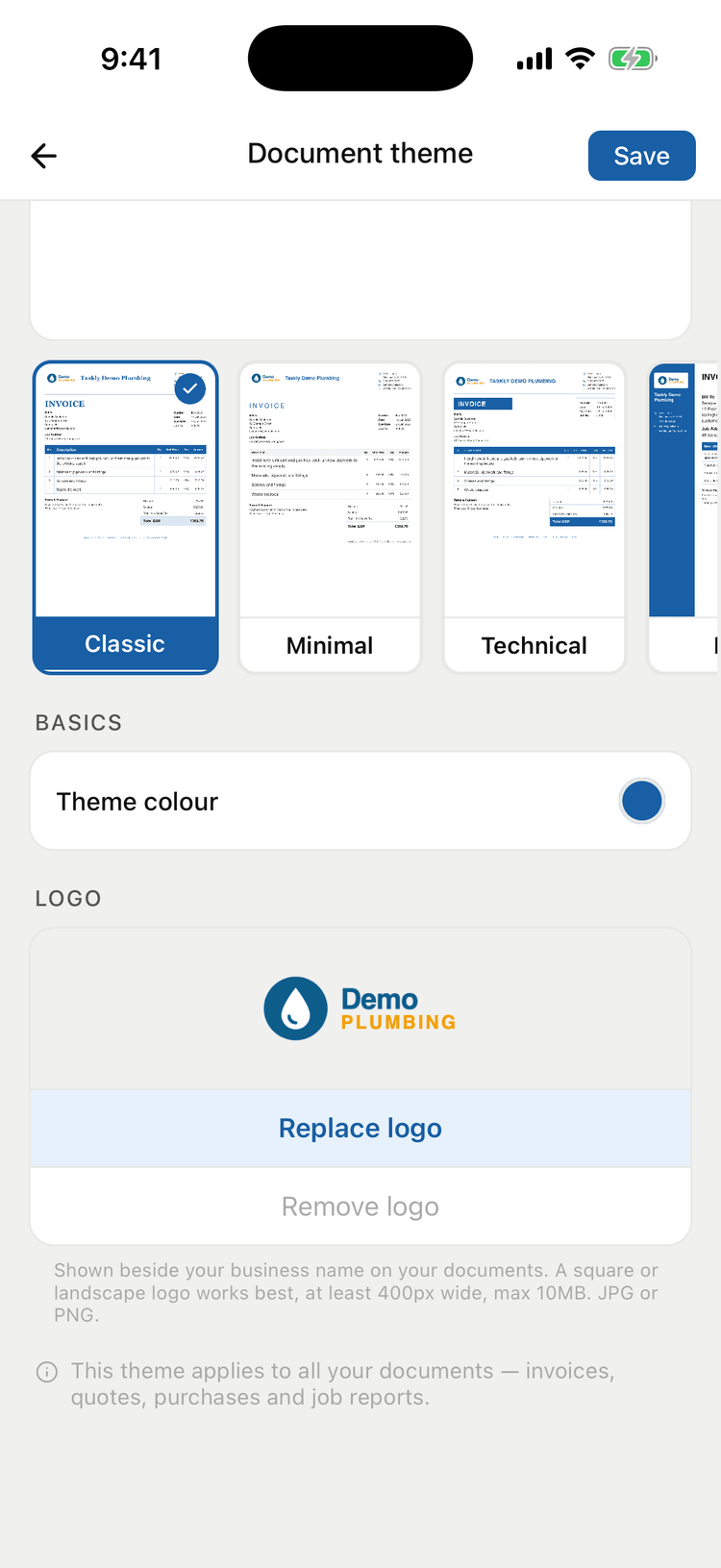
- Tap More → Settings → Document themes.
- Tap Upload logo and choose an image of your logo.
- Pick a Theme colour and a template, then tap Save.
 (opens full size)
 (opens full size)
 (opens full size)
Which logo file to use
A square or landscape logo works best. The two apps accept slightly different files:
- On the web: PNG, JPG, WebP or SVG, up to 2 MB.
- On the phone app: JPG or PNG, at least 400 pixels wide, up to 10 MB.
Tip: A PNG with a transparent background looks best on every template.
Related articles
- Add your business details
Set the name, contact details, address and tax numbers that print on your quotes and invoices.